
TalonPulse User Guide
A plain-language operating guide for sales team members, managers, account admins, and new users. Last updated June 1, 2026.
Daily loop
What to check first
Need help?
When in doubt, send support the context.
Include what you were trying to do, the lead or campaign name, the approximate time, and a screenshot when possible.
01
Getting Started
Sign in with your username and password. Some accounts may ask for a 6-digit security code.
- Use the forgot-password option if it is available.
- Ask your manager or account admin if your account may be inactive.
- Access may vary by role, so not every user will see every page or button.
02
Daily Workflow
Most users will spend their day in Command Center, Conversations, Leads, and Campaigns.
- Start in Command Center to review alerts and activity.
- Open Conversations and reply to high-priority leads first.
- Keep lead stages accurate so filters, reporting, and handoffs stay useful.
03
Working With Leads
The Leads page is your team's main list of people or businesses you are trying to reach.
- Search, filter, import, export, assign, and update lead records.
- Add a valid phone number or email before normal outreach can happen.
- Use filters before bulk actions so you only update the leads you intend to update.
04
Managing Conversations
Conversations helps your team decide who needs a reply and what should happen next.
- Mission Control highlights unanswered replies, high-interest leads, and cold conversations.
- Pipeline groups conversations by stage so teams can focus quickly.
- Review AI-written drafts before sending and respect opt-outs or Do Not Contact status.
05
Campaigns
Campaigns organize outreach to a group of leads for follow-up, re-engagement, or a specific offer.
- Campaigns may be Draft, Active, Paused, or Archived.
- Before launch, confirm the audience, message, channel, timing, and AI-written content.
- If a campaign appears blocked or behaves unexpectedly, contact support.
06
Follow-Up Rules
Automations help TalonPulse take common actions when something happens, like a new lead arriving.
- Rules may add leads to campaigns, send follow-ups, update fields, or route work.
- Review the trigger, action, and scope before turning a rule on.
- Turn a problematic rule off if you have permission and contact support.
07
Analytics & Command Center
Command Center shows what needs attention now. Analytics helps managers understand performance over time.
- Watch reply rate, booking rate, close rate, meetings, messages sent, and pipeline value.
- Use Analytics to spot trends, not one-off changes.
- Check date ranges and filters first if a number looks wrong.
08
AI Settings & Copilot
AI Config controls assistants, products, company knowledge, and workflows. Access may be limited.
- Only trained users should change assistant tone, instructions, or appointment behavior.
- Keep company knowledge current when services, pricing, policies, or offers change.
- Never paste passwords, security codes, or secrets into Copilot.
09
Communications & Settings
Admins can review messaging health, users, templates, branding, integrations, and notifications.
- Use Communications to confirm texting and email connection status.
- Keep team access current and remove access for people who no longer need it.
- Review templates and branding before using them in live outreach.
Lead stages
Keep the pipeline readable
Accurate stages help with filtering, reporting, follow-up, and team handoffs.
Quick reference
Where do I go to...
Sales Team Members
- Start each day in Command Center and Conversations.
- Reply to high-priority and unanswered leads first.
- Review AI-written messages before sending.
- Respect opt-outs and Do Not Contact status.
Managers
- Review Analytics regularly.
- Watch reply rate, booking rate, close rate, and pipeline value.
- Review stuck or stale leads.
- Confirm templates and AI guidance still match current goals.
Account Admins
- Keep user access current.
- Review templates and company knowledge regularly.
- Be careful before changing follow-up rules.
- Ask support for help with messaging, integrations, or access questions.
Troubleshooting
Check these first
A lead did not receive a message
- Does the lead have a valid phone number or email?
- Is the lead marked Do Not Contact or opted out?
- Is the campaign active?
- Was the message scheduled for later?
- Does the message show as failed or blocked?
A campaign will not launch
- Are the correct leads included?
- Is the campaign active or ready to launch?
- Does each lead have the needed contact information?
- Has the message content been reviewed?
- Is there an alert or warning on the campaign page?
AI replies look wrong
- Is the correct product or service selected?
- Is the company knowledge current?
- Does the lead conversation contain confusing context?
- Does the draft need a simple human edit?
Screenshot plan
Screenshots to include in the guide
These are the right screenshots to use. The lead example is approved, with the phone number and email blurred in the source asset.
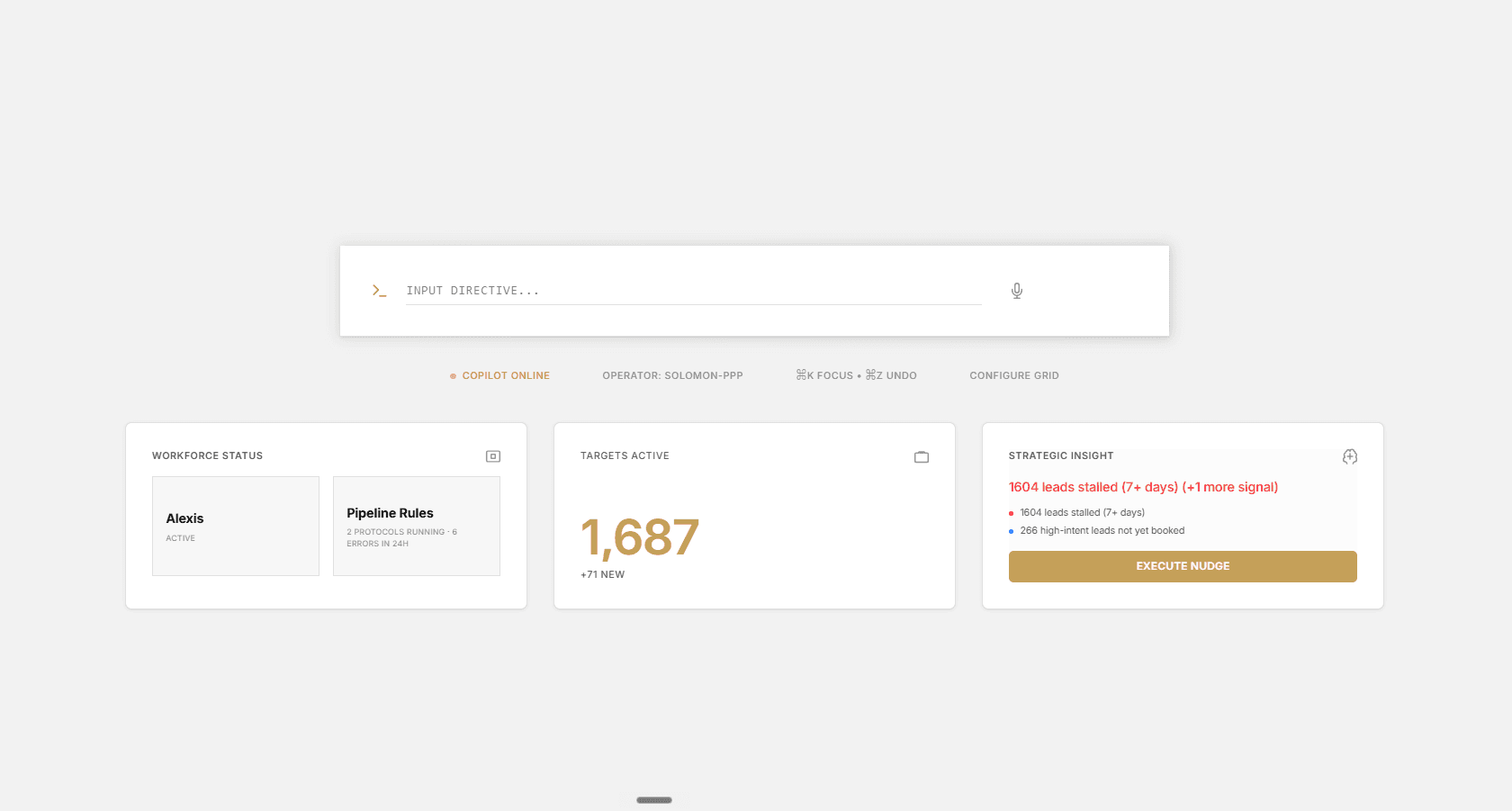
Command Center overview
Best first screenshot because it orients users around alerts, priority work, and daily activity.
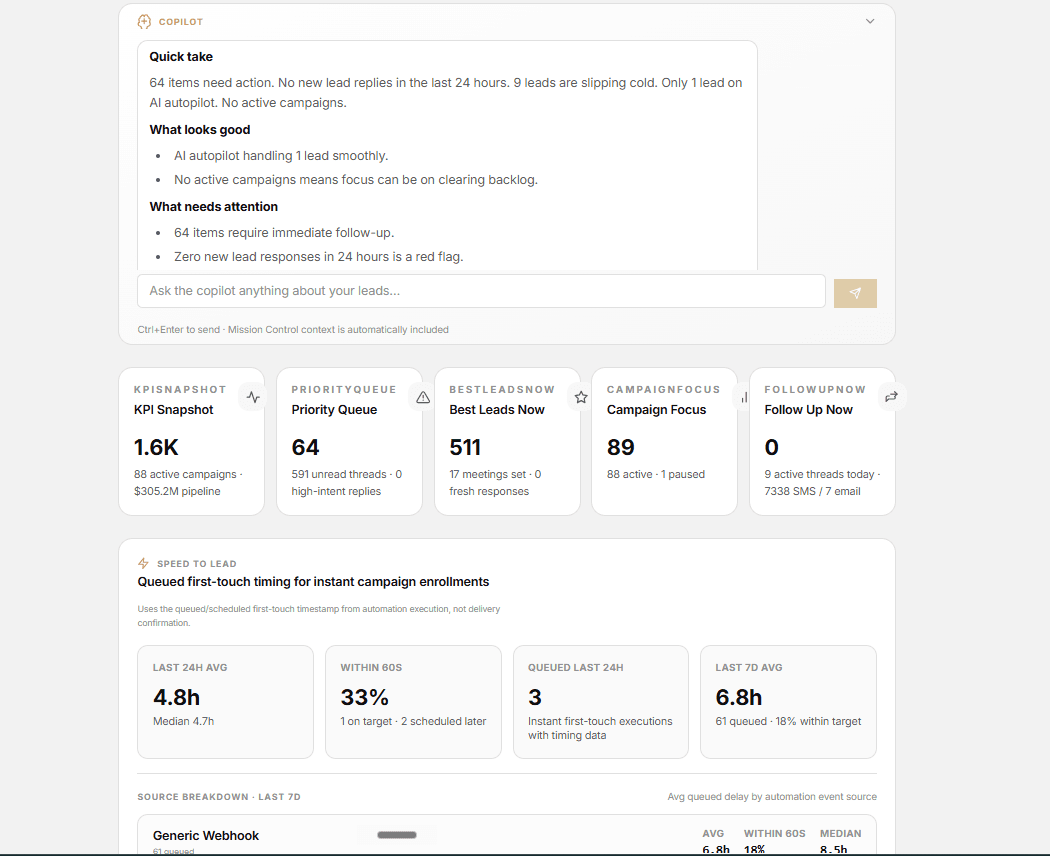
Mission Control
Shows users exactly where to find unanswered replies, priority queues, and high-intent lead activity.
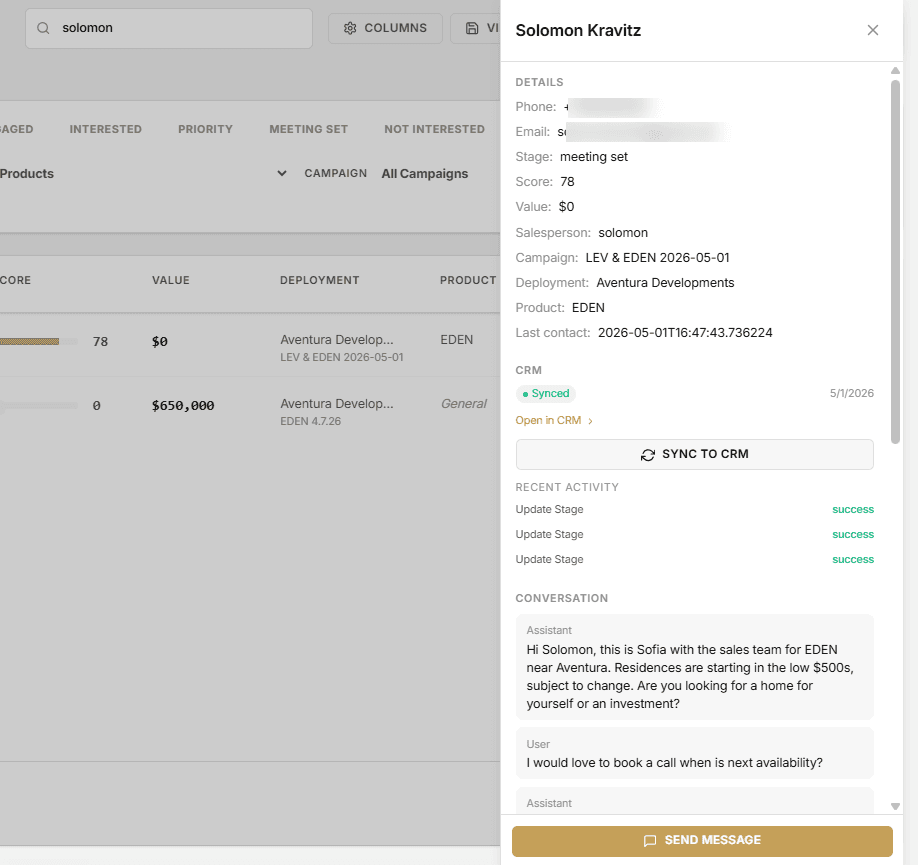
Lead profile drawer
Useful for explaining contact fields, stage changes, notes, assignment, CRM sync, and activity history.
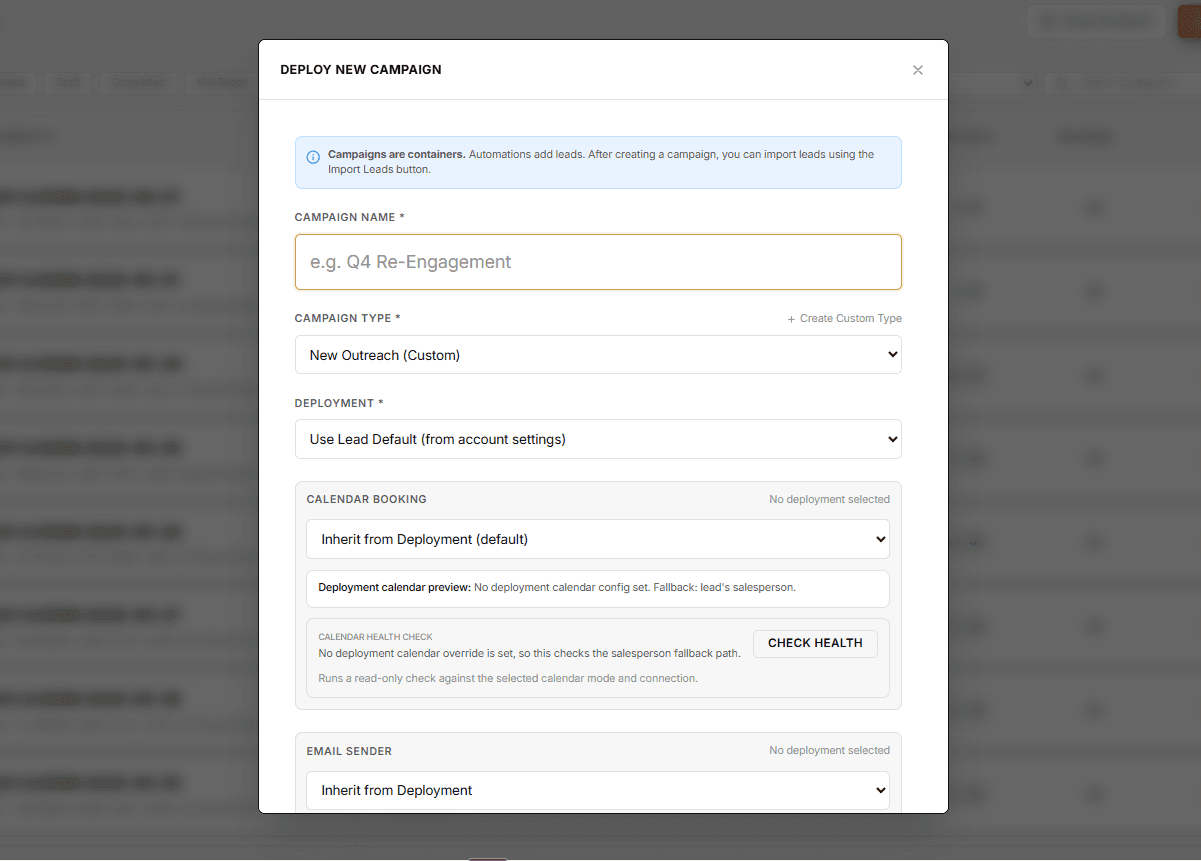
Campaign launch setup
Reduces mistakes by showing the launch settings users should review before activating outreach.
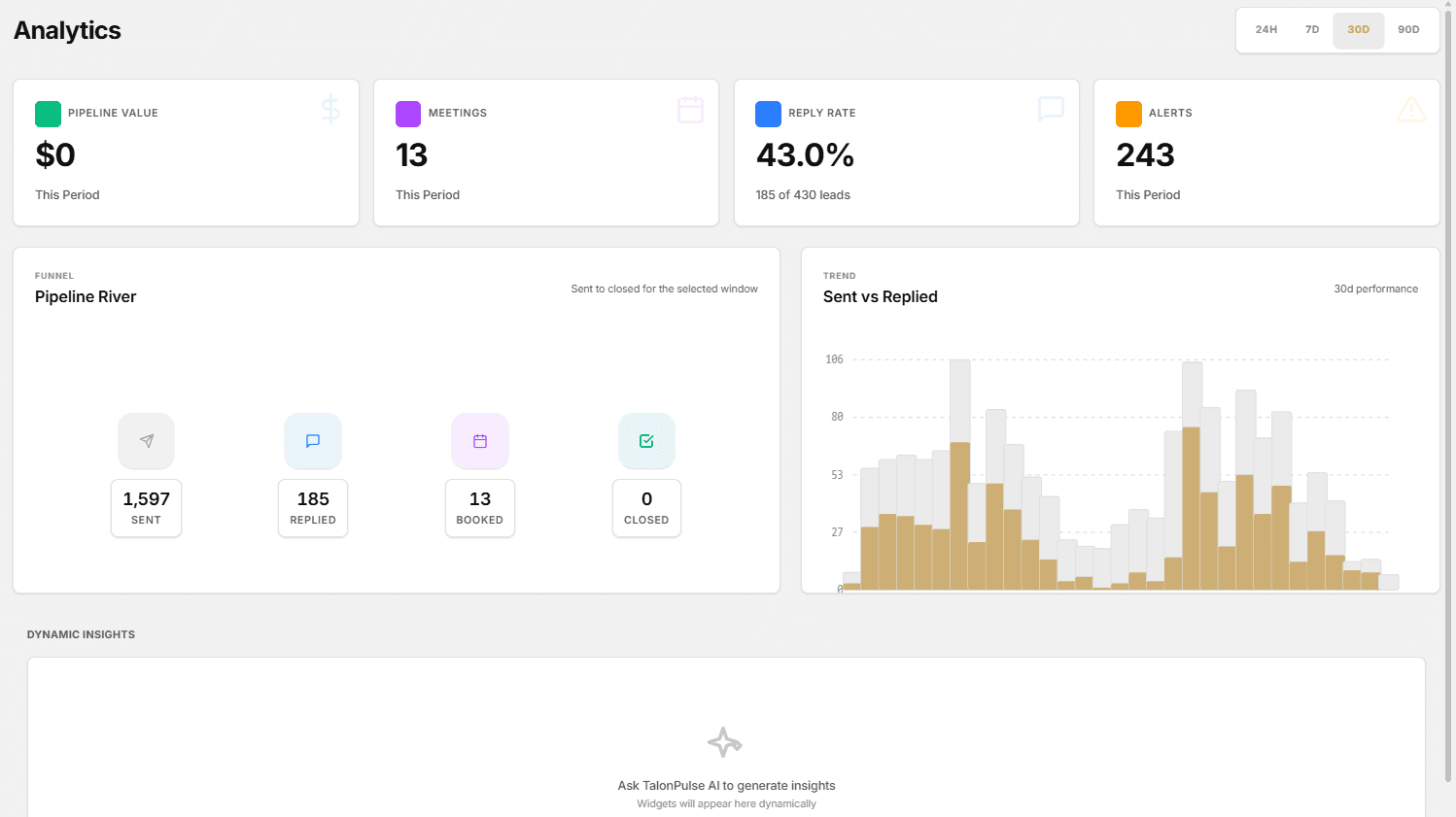
Analytics dashboard
Helps managers understand performance trends and avoid misreading filtered reports.
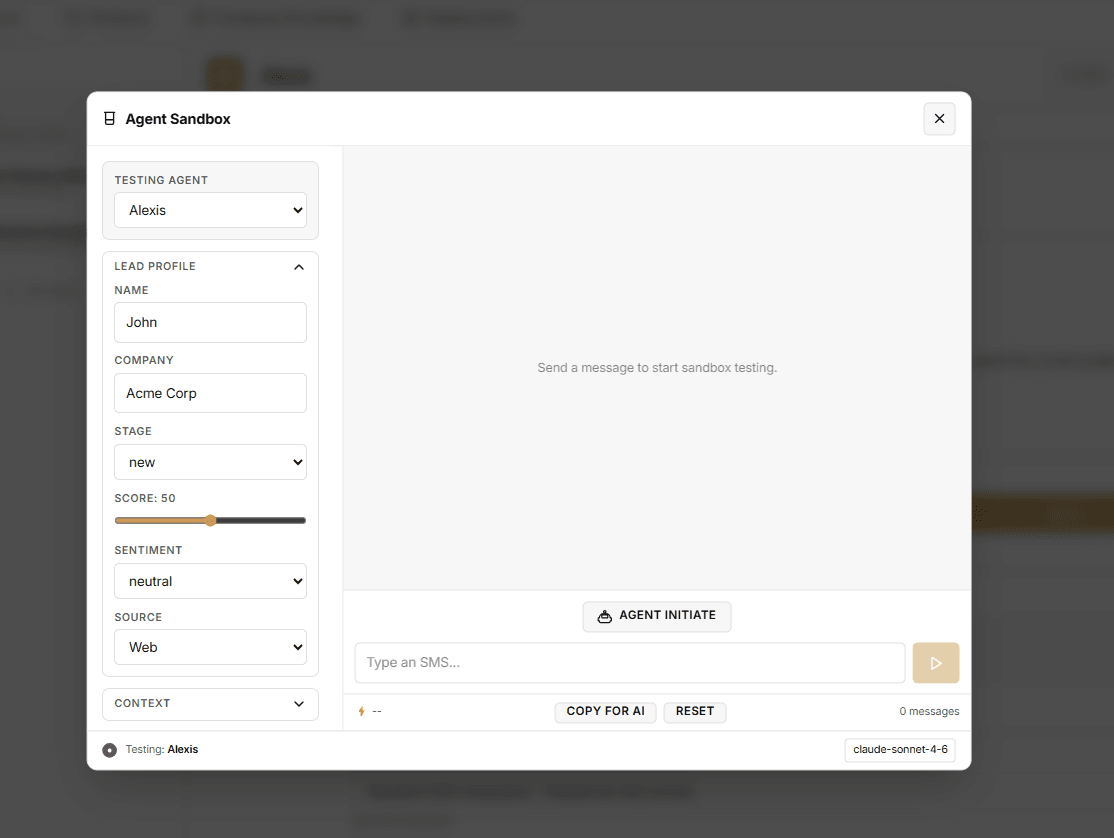
AI Config testing
Shows admins how to test tone and accuracy before using AI in live outreach.
Keep private details out of the guide.
This page intentionally avoids internal setup details, private system information, passwords, security codes, and behind-the-scenes technical steps. For account-specific issues, email support@tykuno.ai.